
Creating a Form View
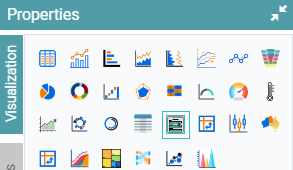
Step 1: On the top right corner of the page, click on visualization under properties. Click on the Form View icon under properties. (Refer to the image below).
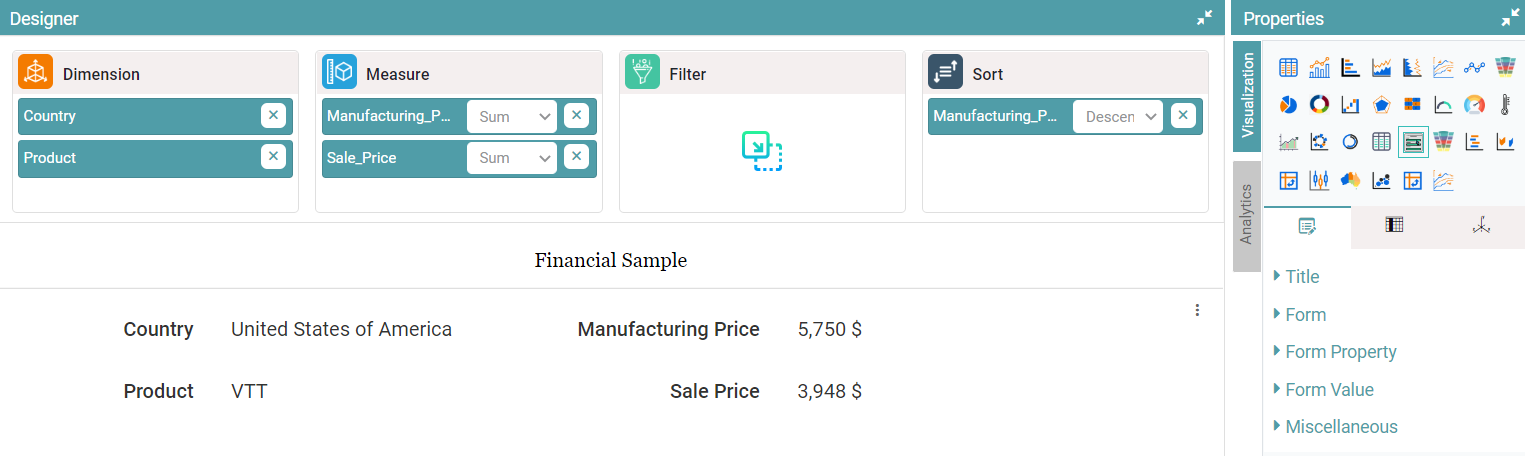
Step 2: Drag and drop the required columns in dimension and measure. The data is represented as a Form View. (Refer to the image below).


Properties
Form
Step 1: On the top right corner of the page, click on visualization under properties. Click on the Form View icon under properties.
Step 2: Drag and drop the required columns in dimension and measure. The data is represented as a Form View.
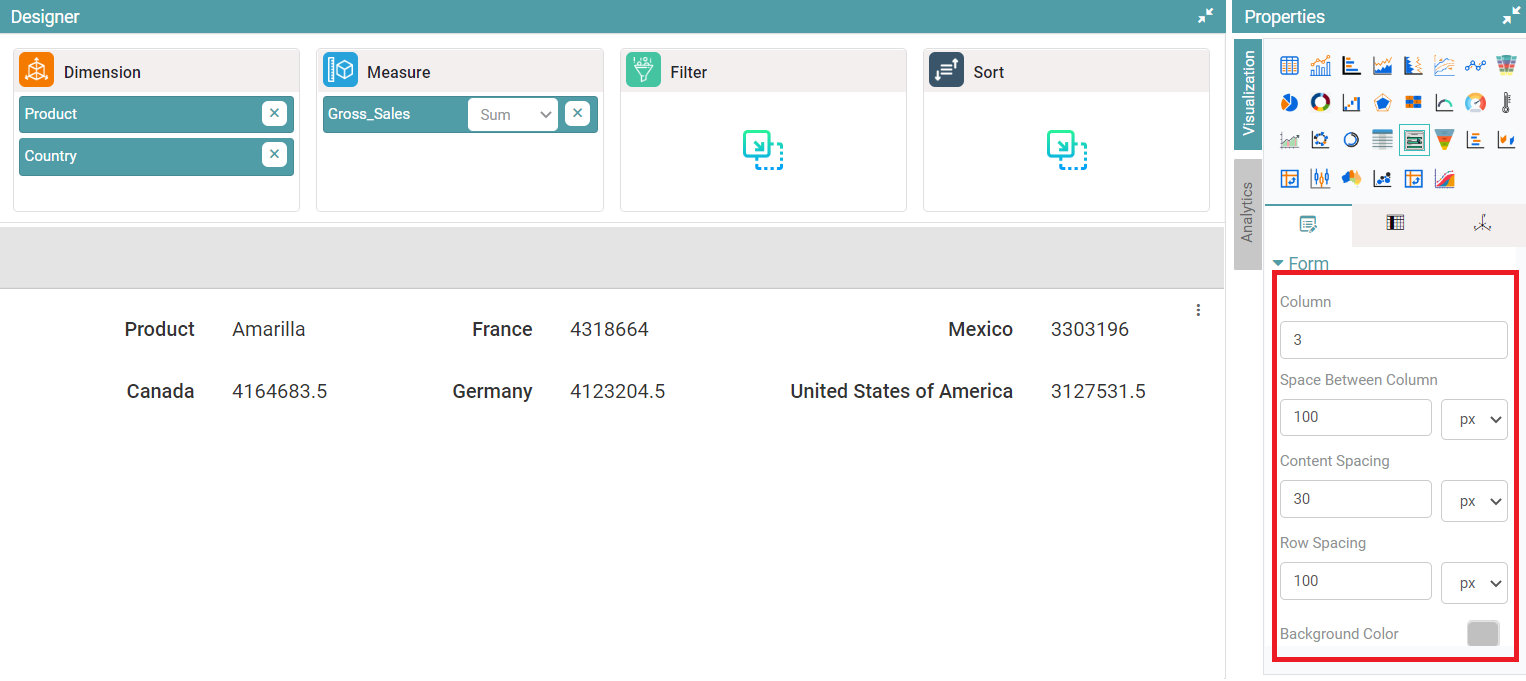
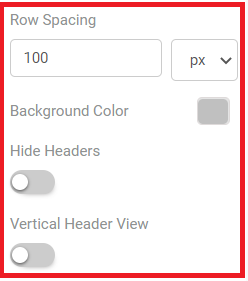
Step 3: Under ‘Form’, the user is now able to add the column number, enter the required space between the columns, set the space between the content, enter the row space, choose the background colors, hide headers and change the header view. (Refer to the images below).
Form Property
Step 1: On the top right corner of the page, click on visualization under properties. Click on the Form View icon under properties.
Step 2: Drag and drop the required columns in dimension and measure. The data is represented as a Form View.
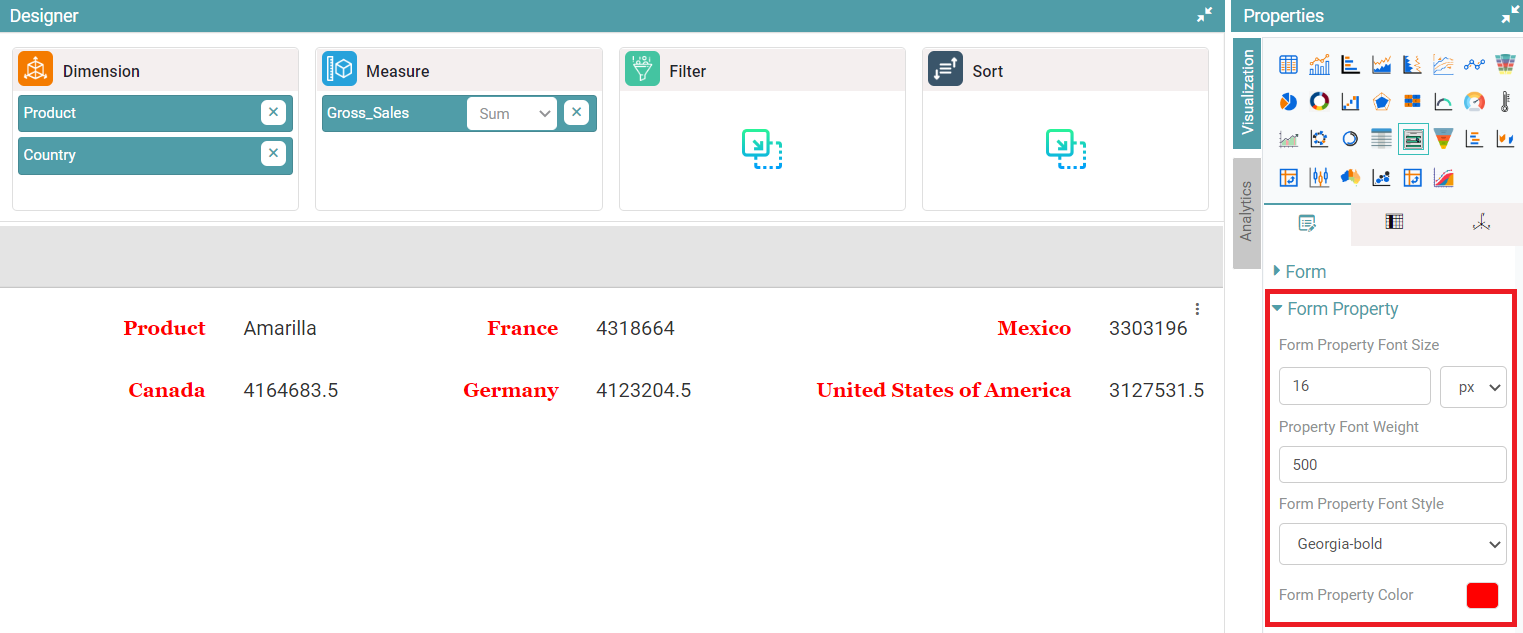
Step 3: Under ‘Form Property’, you can change the form property font size, font weight, font style and font color. (Refer to the image below).
Form Value
Step 1: On the top right corner of the page, click on visualization under properties. Click on the Form View icon under properties.
Step 2: Drag and drop the required columns in dimension and measure. The data is represented as a Form View.
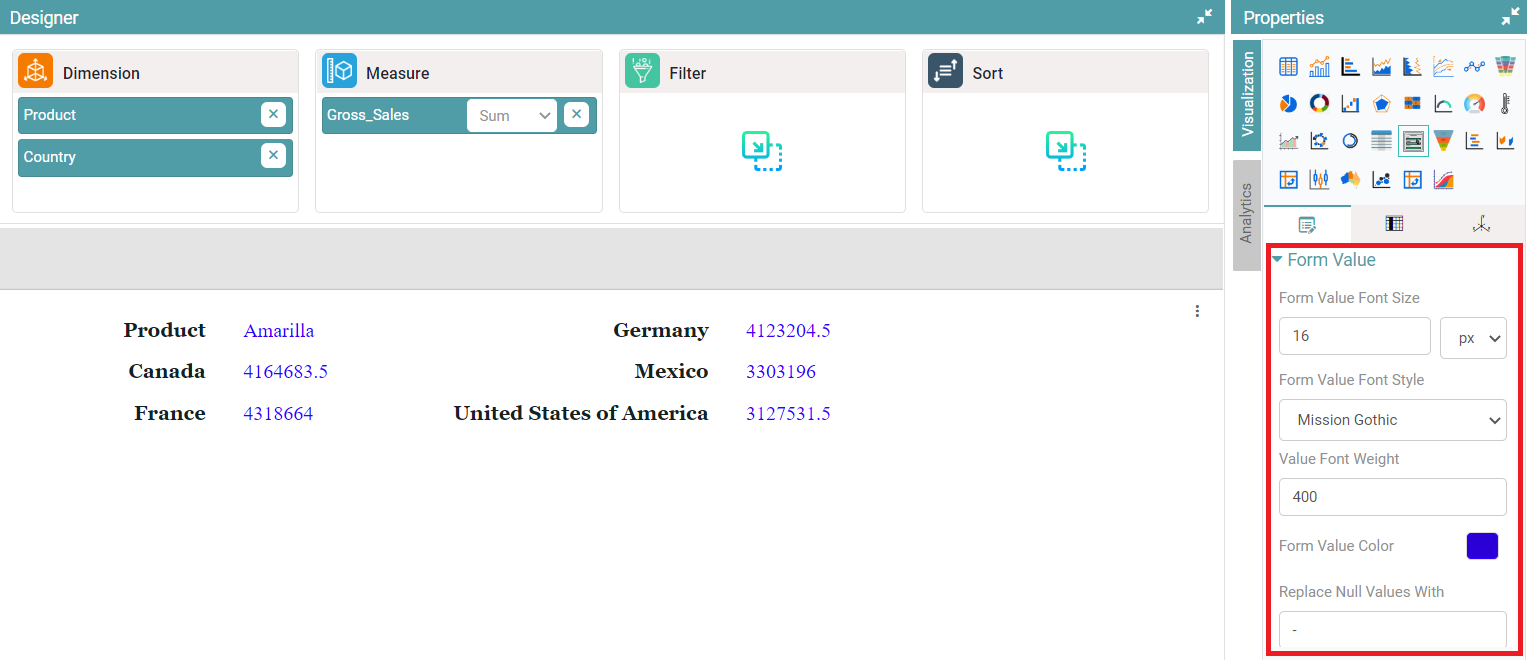
Step 3: Under ‘Form Value’, you can alter the value font size, font style, font weight and font color.
Step 4: Null value columns can also be replaced with the values that the user chooses. (Refer to the image below).
Columns
Columns are the same as table and Bar Chart properties and columns.