Duplicates Node – Introduction
Duplicate node helps in dropping the duplicates of the dataset based on the selected keys, sorting order and filter criteria.
Step 1: Once the data has been imported, click on data preparation.
Step 2: Drag and drop the “Duplicates” node onto the main screen. Connect the two nodes (Data Import node and Duplicates node) or three nodes (Two Data Import nodes and Duplicates node). (Refer to the image below).
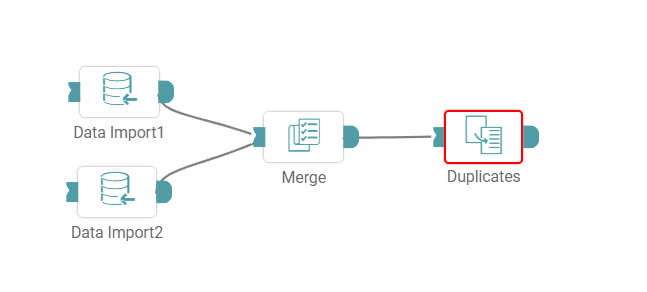
Step 3: Once this has been done, select the Unique Key or Multiple keys. Based on this, the duplicates are dropped from the dataset. (Refer to the image below).
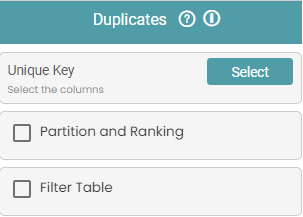
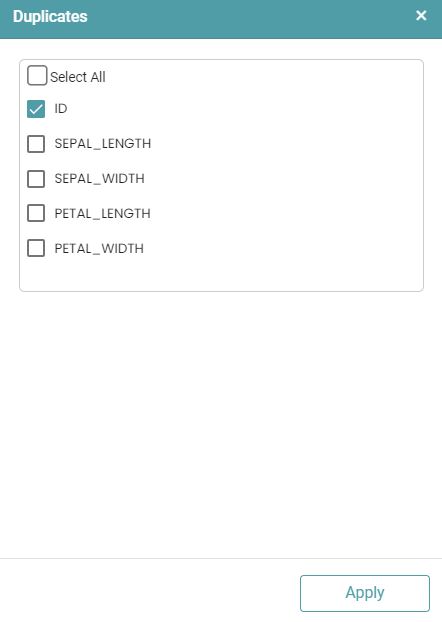
Step 4: It is to be noted that the default value of the unique key will always be set to “Select All”. You can click on the select button next to unique key to deselect the columns or select specific columns. (Refer to the image below).
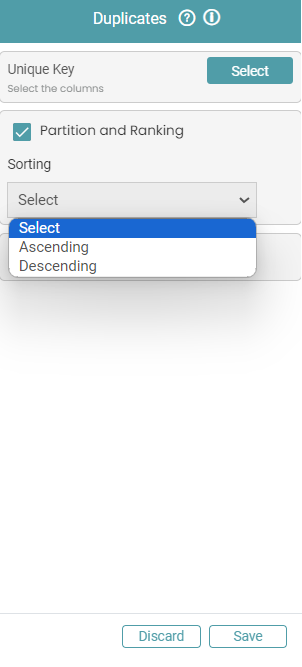
Step 5: You can also sort the values by selecting one key from the unique key select option and can select the sorting order from the Partition and Ranking option. If you do not want to sort the values, then you can unselect the Partition and Ranking option. (Refer to the images below).
Step 6: Based on the requirement, you can also select the filter table option and enter the required filter criteria. (Refer to the images below).
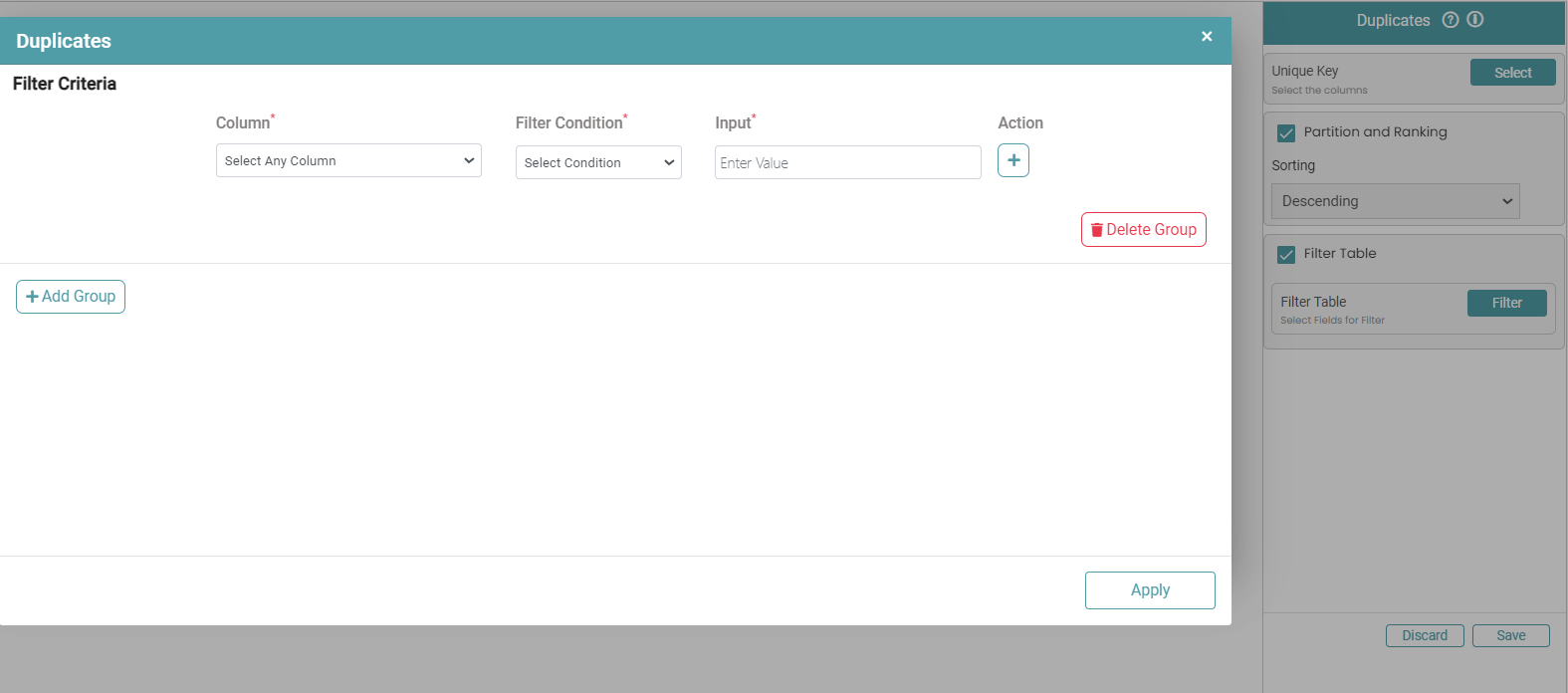


Step 7: The duplicates will be dropped based on the filtered data and the selected key.
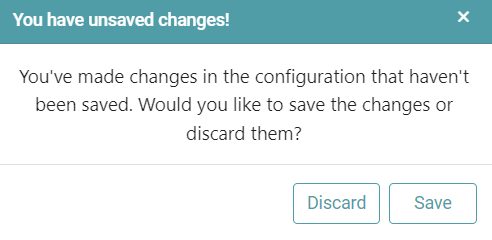
Note: After configuring a node, ensure you click “Save” to retain the changes. If you need to undo the configuration, click “Discard.” Failing to choose either “Save” or “Discard” will trigger a warning pop-up. (Refer to the image below).