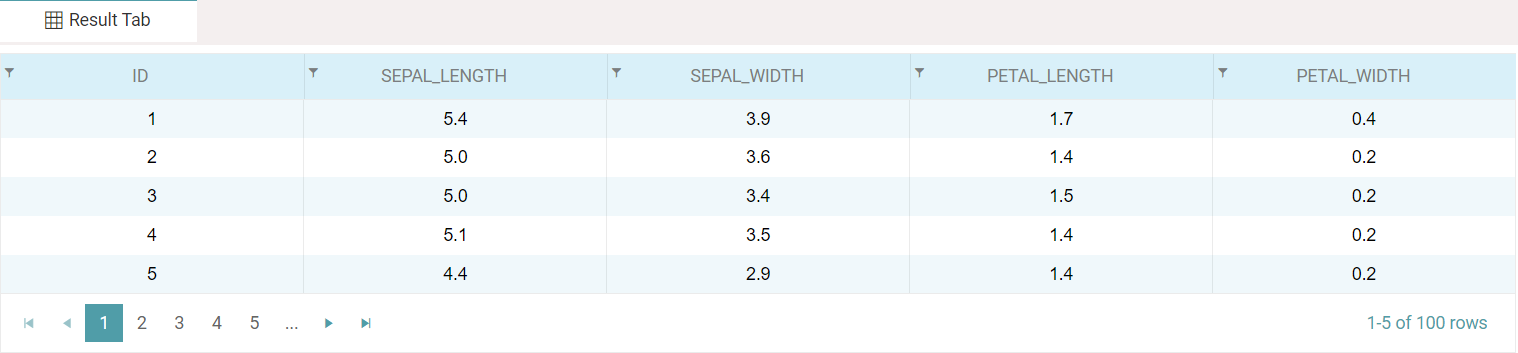
Sorting Node – Introduction
The sorting node helps the user to sort the field in the dataset either in ascending or descending order where the user can prioritize which field needs to be sorted first.
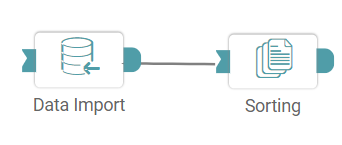
Step 1: The first thing the user needs to do is import the data using the data import node and then click on the data preparation tab. Then drag and drop the sorting node and connect the data import node with sorting node. (Refer to the image below).
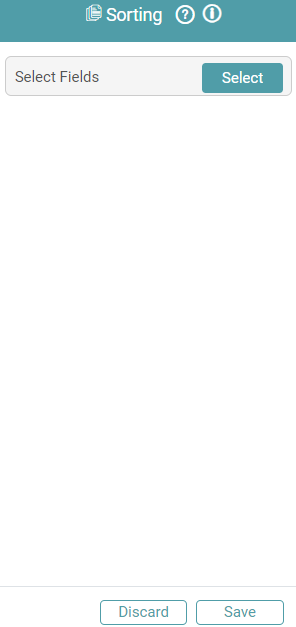
Step 2: Click the select option in the select fields tab and after that sorting dialogue box opens. (Refer to the image below).


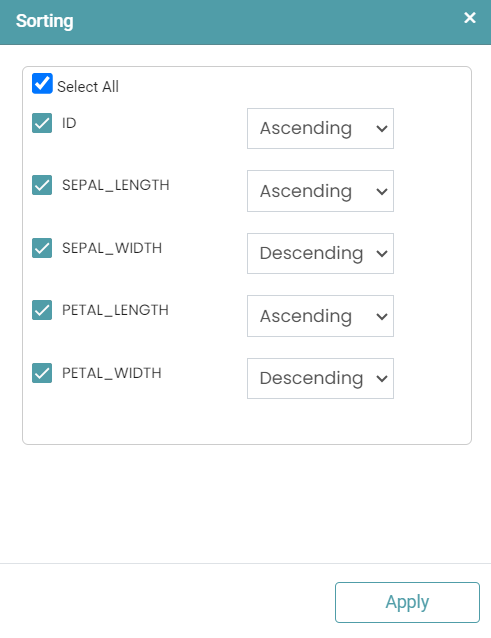
Step 3: In the sorting dialogue box we will have fields where we can select the fields which we need to apply the sorting order then we can choose whether the field needs to be in ascending or descending order and then we can prioritize which field needs to be sorted first by just dragging and dropping the fields according to the order by which the user needs the fields to be sorted.
Step 4: Select the fields which need to be sorted and then select their sorting type. After that just drag and drop the fields in the order in which the sorting should take place. For the bellow example, id will be sorted in ascending order first and then sepalLengthCm in ascending order and then petalLengthCm in descending order. (Refer to the image below).
Step 5: After you click the apply button and run the sorting node the result will be displayed in the result tab. (Refer to the image below).