Trimming Node – Introduction
Trimming is responsible for filtering out the data on quantiles. To use trimming node, the data needs to be imported.
Step 1: Once data has been imported, click on data preparation.
Step 2: Drag and drop the trimming node onto the main screen and connect the two nodes. (Refer to the image below).
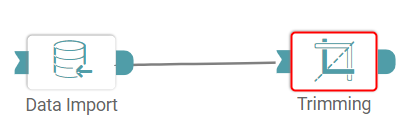


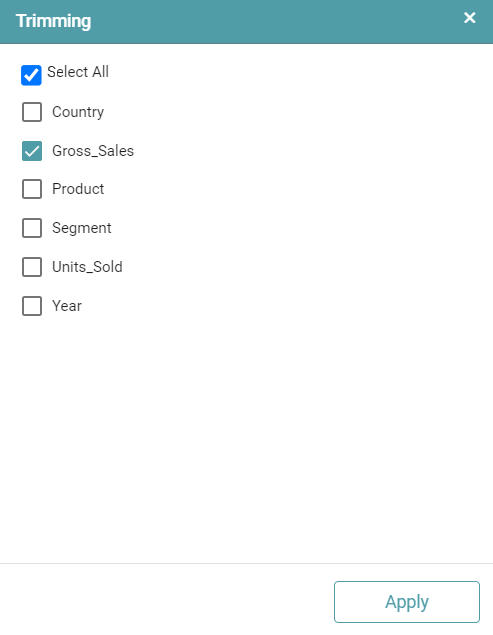
Step 3: Once a successful connection is made between ‘data import and trimming’, click on the select button. Trimming pop-up appears with the columns present in the data.
Step 4: Select the required columns. Click ‘Apply’. (Refer to the image below).
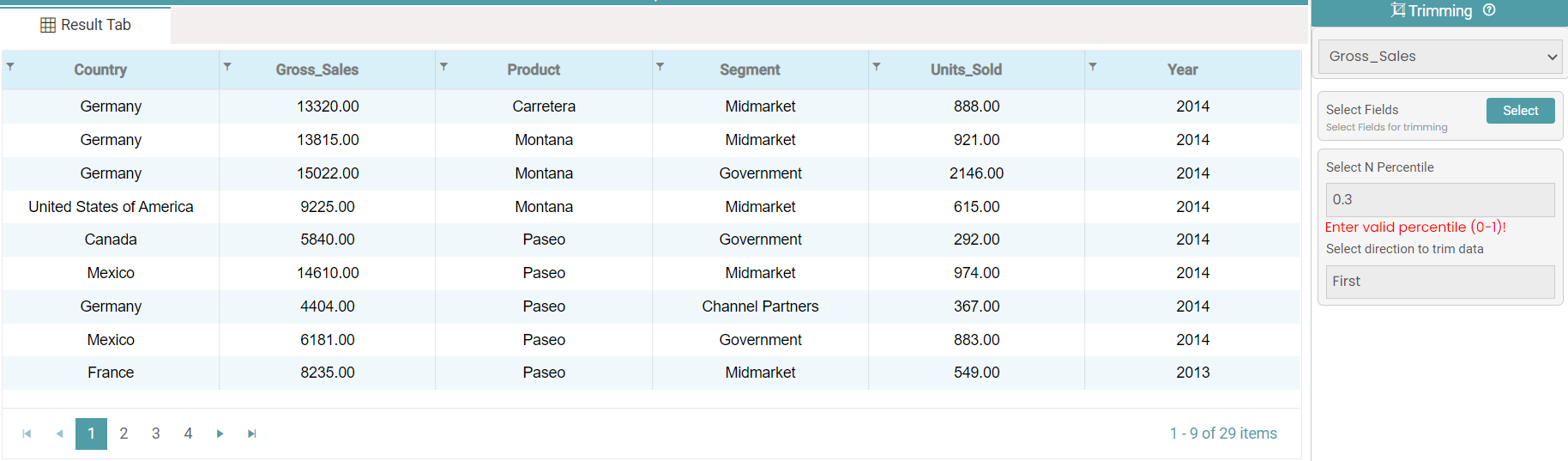
Step 5: You need to add percentile and direction to trim the data.
Step 6: Once the data is filled click the run button to run the workflow. Click on the “Show Results” on the bottom line to view the result.
Step 7: Trimmed data is reflected in the form of a table. (Refer to the image below).
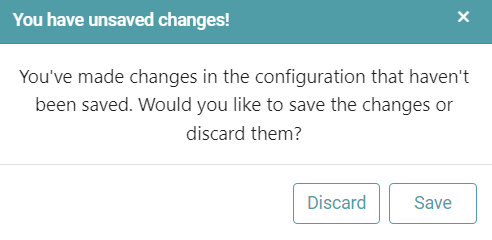
Note: After configuring a node, ensure you click “Save” to retain the changes. If you need to undo the configuration, click “Discard.” Failing to choose either “Save” or “Discard” will trigger a warning pop-up. (Refer to the image below).