Fill Between – Introduction
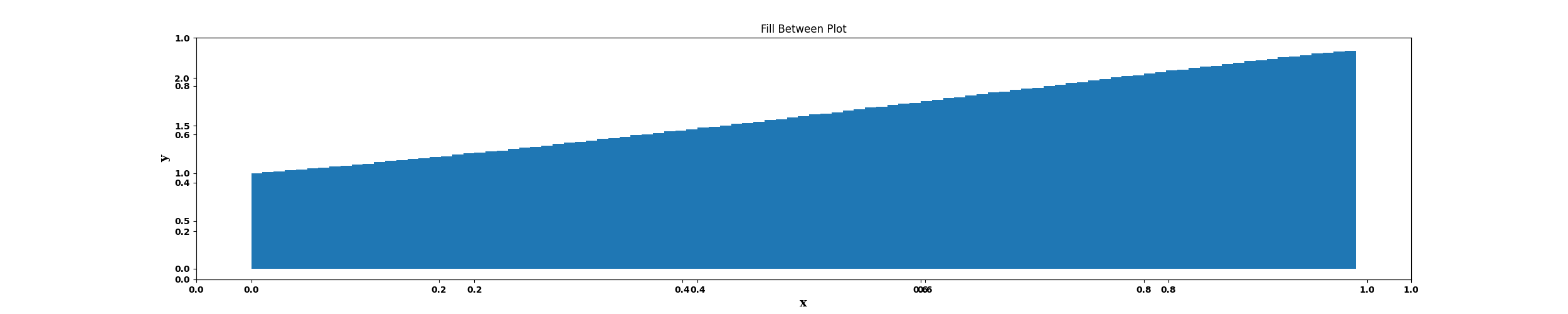
Shaded areas between two curves on a plot. This can be particularly useful for highlighting the area between lines or curves. This chart can help to visually emphasize certain ranges or relationships in your data.
Step 1: Once data is imported, click on the statistics tab.
Step 2: Drag and drop the fill between nodes onto the main screen. Connect the two nodes. (Refer to the image below).
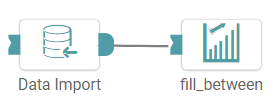
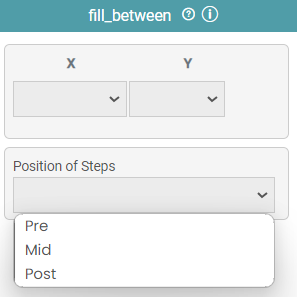
Step 3: Once a successful connection is made between ‘data import and fill between’, click on the “x” and “y” dropdown to choose the X and Y axis of the plot. You can also choose Position of Steps from the drop down. (Refer to the image below).
Step 4: Once the x and y axis has been selected, click on the run button to run the workflow. Click on the “Show Results” on the bottom line to view the result.
Step 5: The data is reflected in the form of a fill between plot. (Refer to the image below).


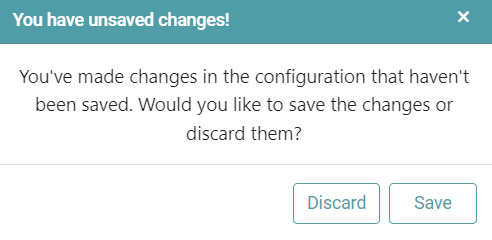
Note: After configuring a node, ensure you click “Save” to retain the changes. If you need to undo the configuration, click “Discard.” Failing to choose either “Save” or “Discard” will trigger a warning pop-up. (Refer to the image below).