Scaling Node – Introduction
You can convert numerical columns in a gaussian like distribution. You can choose from the various methods of transformation available – logarithm, power and Z score.
Step 1: Once data is imported, click on transformation.
Step 2: Drag and drop the transformation node onto the main screen. Connect the two nodes. (Refer to the image below).
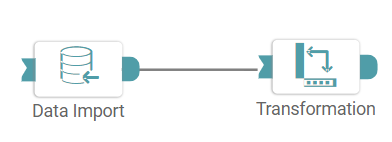
Step 3: Once a successful connection is made between ‘data import and transformation’, click on the select button.
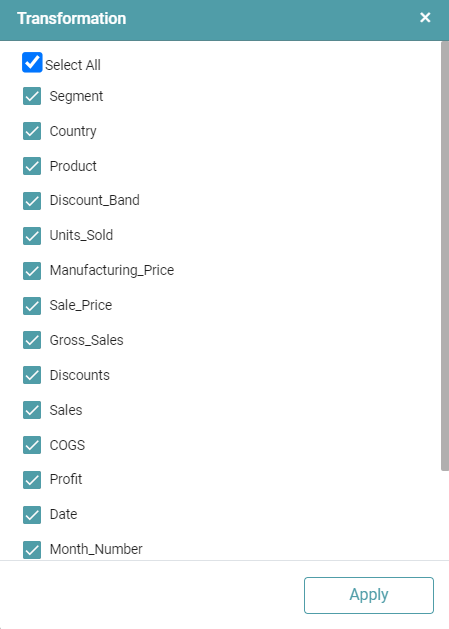
Step 4: A pop-up appears with the columns present in the data. Click on ‘Apply’.
Step 5: Columns can be filtered on various options available. (Refer to the images below).
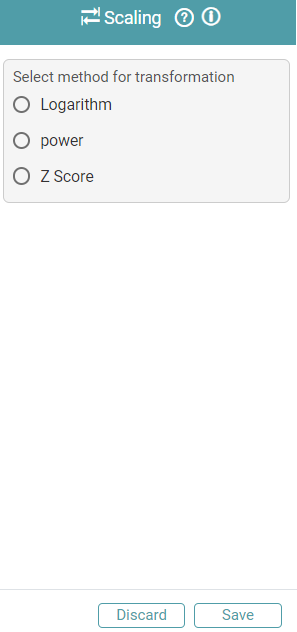


Step 6: Once the columns and the operations that need to be performed have been selected, click on the run button to run the workflow. Click on the “Show Results” on the bottom line to view the result.
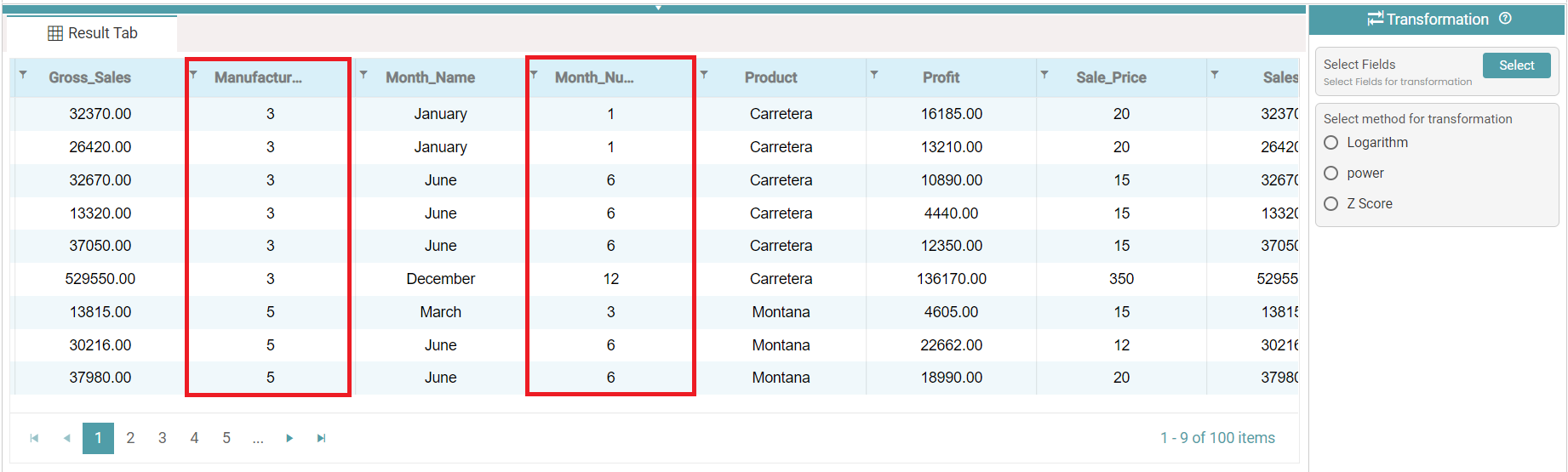
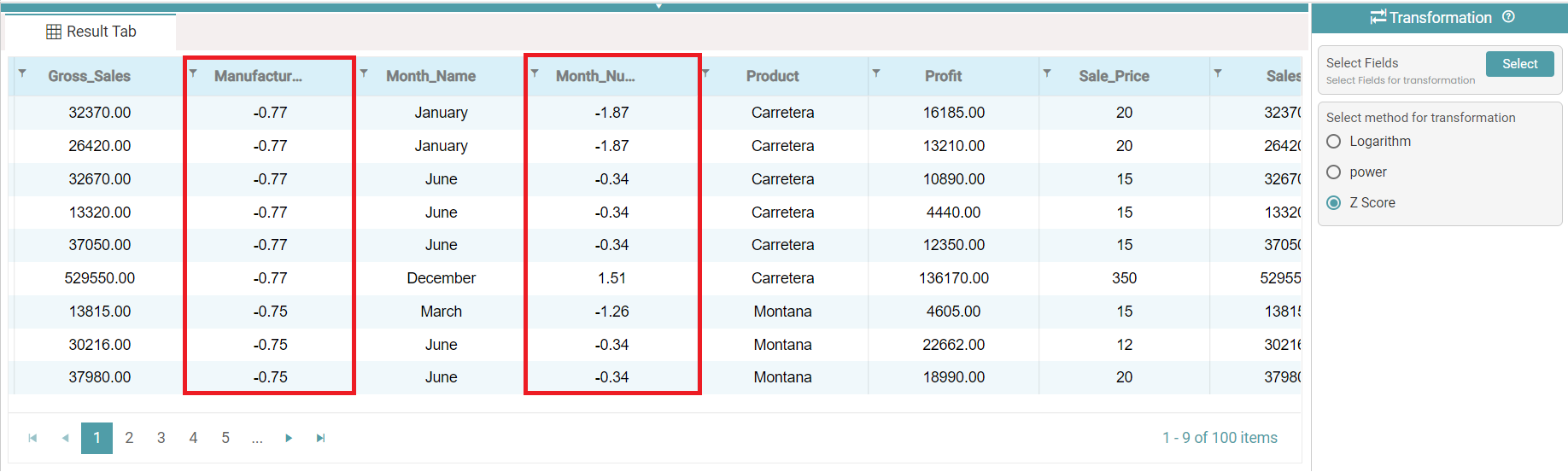
Step 7: The images of the before and after has been given below. The Columns selected to be transformed are “Manufacturing Price” and “Month Number”. The data is reflected based on the operations selected. (Refer to the images below).
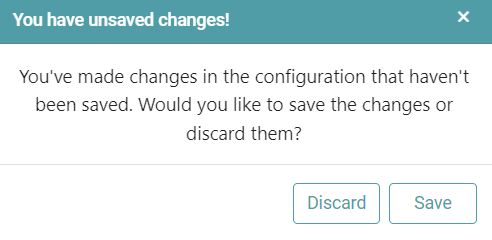
Note: After configuring a node, ensure you click “Save” to retain the changes. If you need to undo the configuration, click “Discard.” Failing to choose either “Save” or “Discard” will trigger a warning pop-up. (Refer to the image).